

How to Integrate Jupyter Notebooks into Teaching
What are Jupyter Notebooks?
If programming tasks are part of the assignments Jupyter notebooks can be utilized. They can be used to create a structured document consisting of markdown and programming parts. Key advantages of them are:
- Students can run and edit their code, and immediately see the output – even visualizations.
- Good introduction into programming as as graphical user interface (GUI) is available.
- Jupyter supports Markdown test, images, LaTeX and many languages and tools.
- Outputs can be saved for the next user to see.
Jupyter notebooks are widely used in data science education and research due to their interactive nature and flexibility. They allow educators to combine explanatory text, code, and visualizations in a single document, making it easier for students to follow along and experiment with the material.Notebooks are already often used in teaching, so that resources exist on how to use them, for example, for data storytelling. Here are some additional resources regarding using Notebooks:
- Notable: On-the-fly Assistant for Data Storytelling in Computational Notebooks
(https://dl.acm.org/doi/full/10.1145/3544548.3580965) - Ethnographies of Datasets: Teaching Critical Data Analysis through R Notebooks
https://cuny.manifoldapp.org/read/ethnographies-of-datasets-teaching-critical-data-analysis-through-r-notebooks-8395d7ae-bbb0-4547-a738-89b4be8b9c12/section/f5d6c3ca-cc2e-4e2a-9049-9e8dfd5f2603 - Engineers Code: Reusable Open Learning Modules for Engineering Computations
https://ieeexplore.ieee.org/abstract/document/9007681
How to integrate them into teaching?
We have experimented with various tools and frameworks to make interactive learning units accessible not only to us, but also to other teachers and eager learners.
In our case we decided to offer our materials and notebooks in a downloadable format, allowing you to adapt them to your needs. Depending on the requirements, alternative options may be more appropriate:
- Direct download
- Github Repository
- nbviewer
- mybinder
- jupyterlite
1) Direct download
Students can use the files directly by downloading them as a ZIP via Git or other services. For example, if they need to calculate larger AI models in some units, this is recommended. However, take a look at the other option — it may be more suitable for your needs!
Pro: Students learn how to set up. Some units require this as they are too advanced.
Con: Students have to set up programming environment themselves (e.g. using Anaconda).
2) GitHub Repository
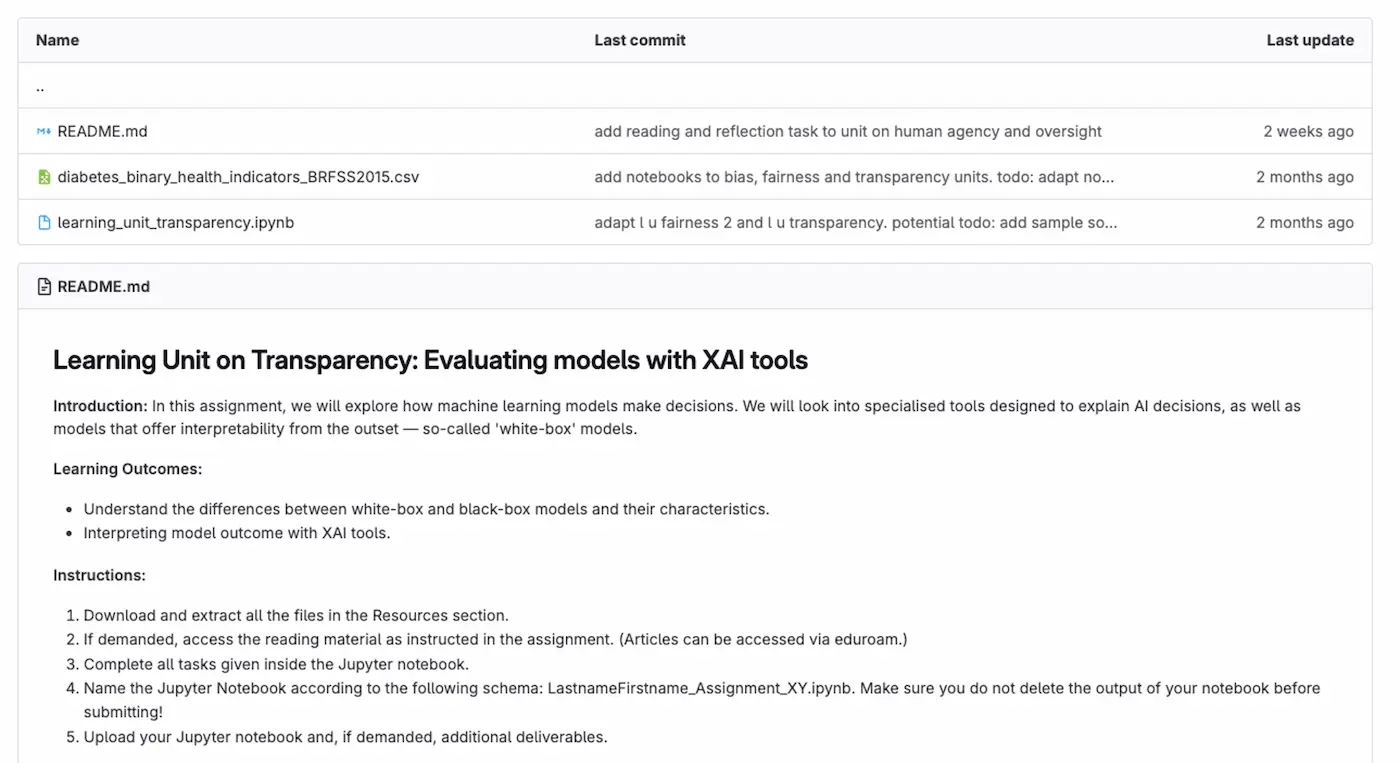
You can create a GitHub or GitLab repository, to which your students can gain access. This gives them easy access, and they can even download folders. Once downloaded, they can work on the notebook in their preferred environment. In Git, you can also view notebooks before downloading them. However, some aspects, such as images or interactive elements like quizzes, may be lost.
Pro: Simple preview and code adjustments possible, can be used to collect and provide assignments.
Con: Git can not compute, no programming, additional effort if not already used in course.
3) NBViewer
NBViewer can be used in conjunction with GitHub. On the website (https://nbviewer.org/), you can link to your repository and specify the Jupyter notebook you want to display.
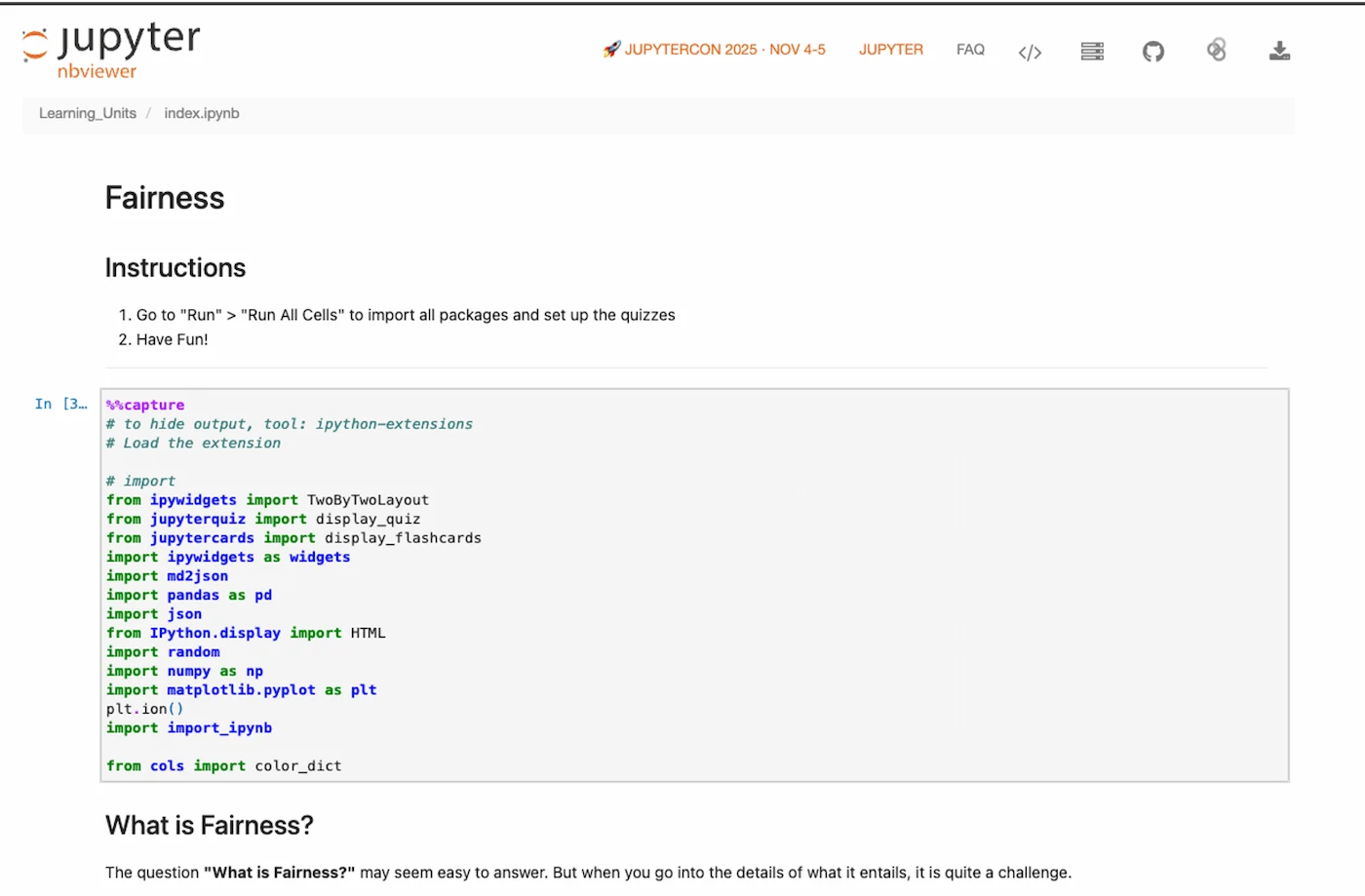
With NBViewer, interactive widgets such as sliders can be used, images can be displayed, and quizzes can be accessed. However, the underlying files must be public, meaning that theoretically, everyone has access.
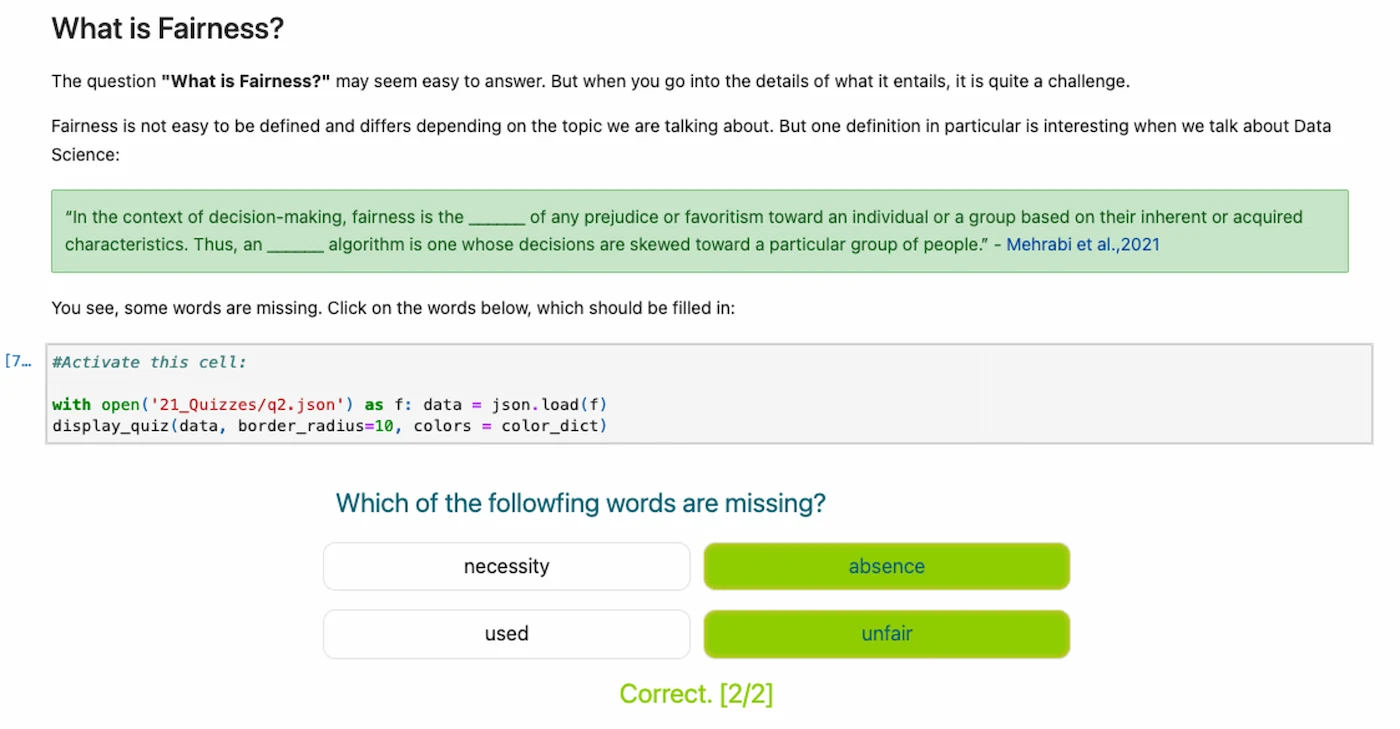
Pro: Well structured, easy setup for teacher, advanced preview.
Con: No programming or computing, public repository needed.
4) MyBinder
MyBinder.org (https://mybinder.org/) is a more advanced option than nbviewer. You need to have some technical knowledge to set up the environment for the notebook to run.
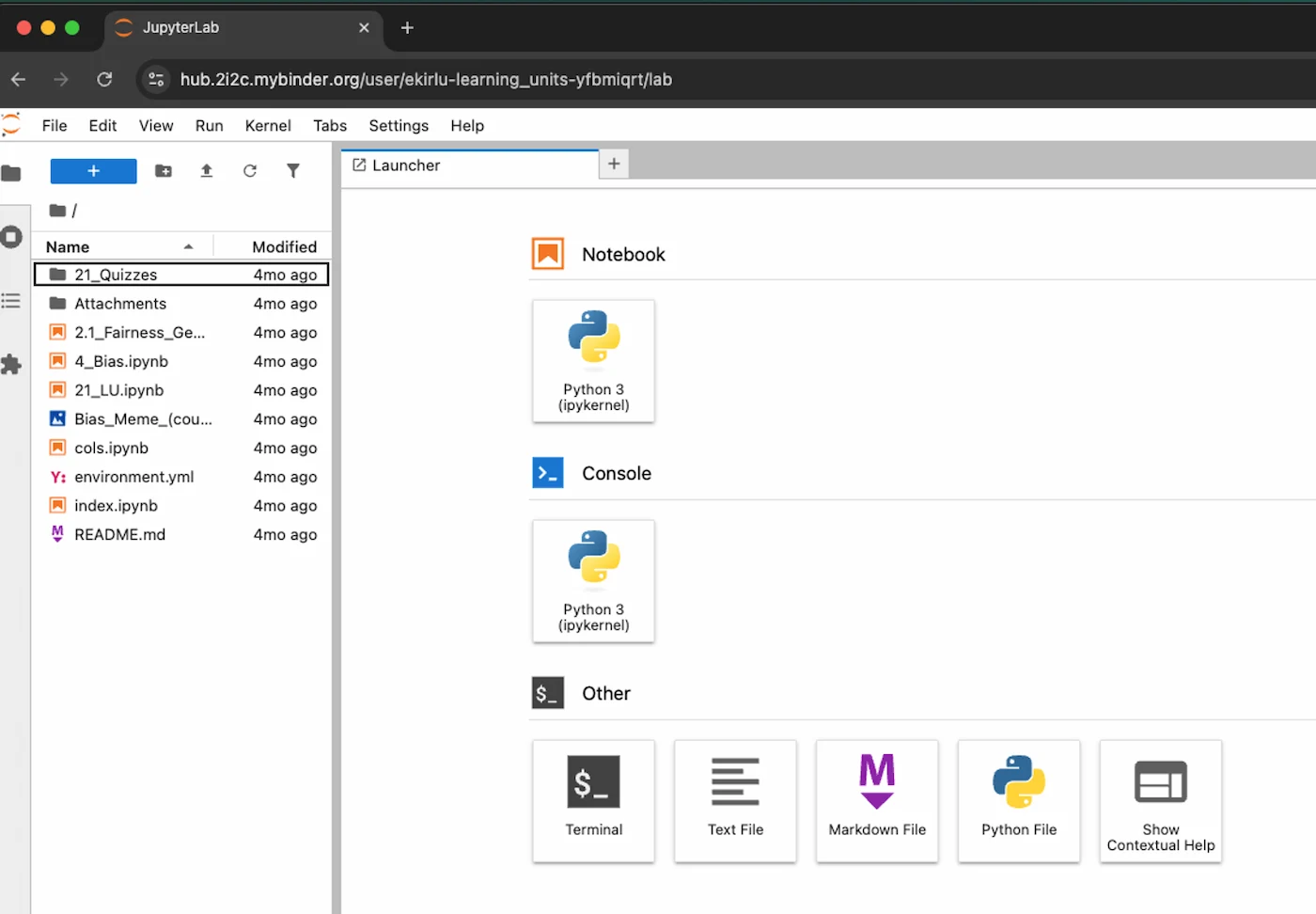
MyBinder lets you code directly in the browser, but it is not suitable for advanced calculations. Nevertheless, this tool is recommended for simple content and gaining an initial understanding. Interactive widgets can be integrated easily. However, if widgets such as quizzes are used, the answer are also publicly available in the repository.
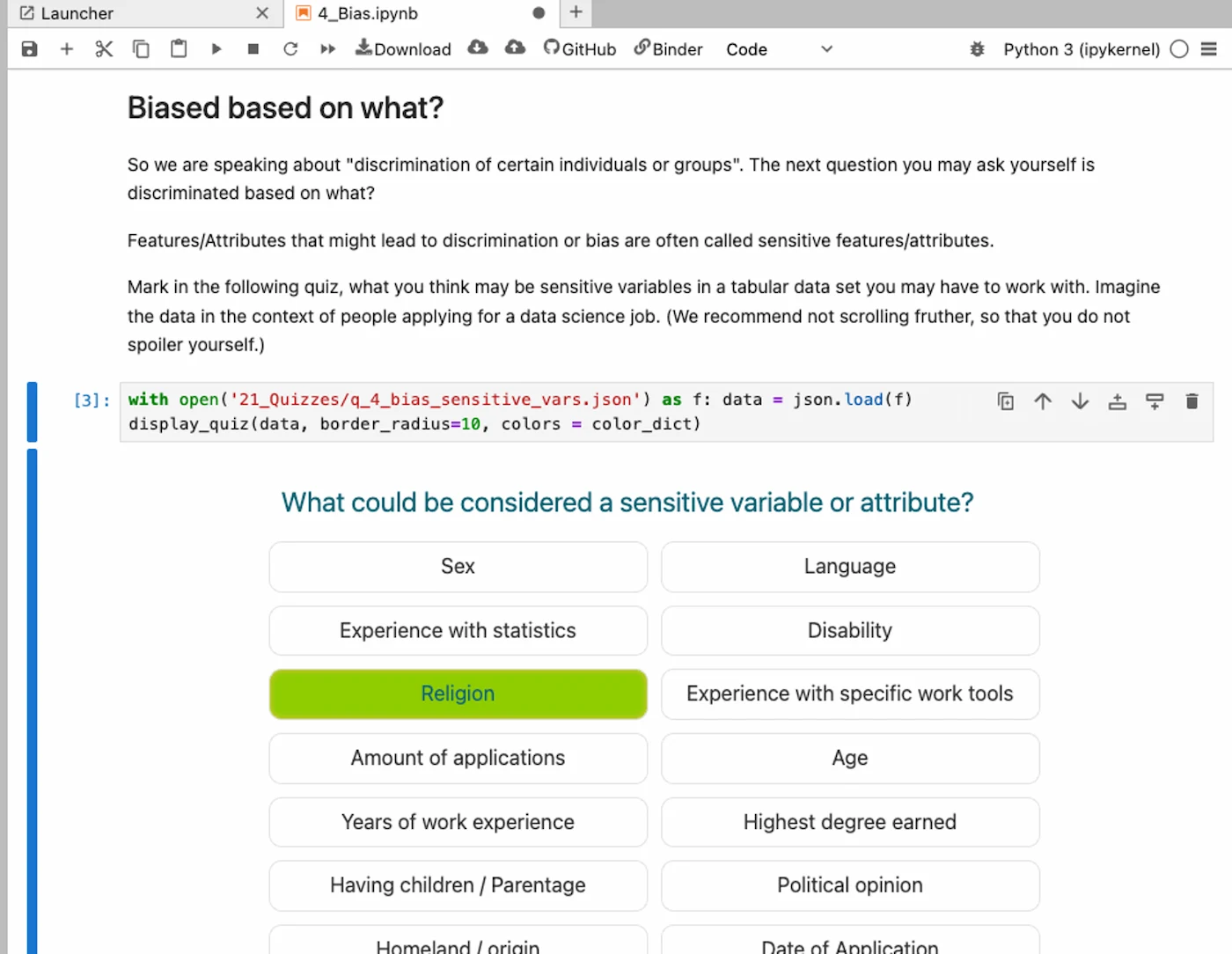
Pro: Programming, interaction and preview available, integrated nbviewer link, gives access to folder not just one file.
Con: More complicated set-up, longer loading times, maintenance needed, public repository needed.
5) JupyterLite
JupyterLite is an interactive viewer that lets you insert your own files and interact with them (https://jupyterlite.readthedocs.io/en/latest/). You can provide a download link so students can work on it. However, be aware that it is still in development and unofficial.
Pro: Interaction and preview available.
Con: In development.